The Data Value Score is a single metric that reflects the overall business value of a data asset. It helps you quickly assess the usefulness and impact of a dataset based on multiple contributing factors.
Parameters
The score is calculated based on the following parameters:
-
Data Quality Score (DQ Score)
-
User ratings
-
Completeness
-
Timeliness
-
Lifecycle
-
Scarcity
-
Popularity
-
Relevance
-
Authorized source
Customizing Parameter Weights
You can assign a custom weight to each parameter based on its importance in your organizational context. Prioritize the parameters that contribute most to the value of the data asset.
To ensure accurate scoring and consistent evaluation:
-
Total weight must equal 100%
-
Final score is a weighted average: The final score is calculated by multiplying each parameter’s score by its assigned weight and summing the results.
Data Value Score Calculation
Each parameter is scored on a standardized scale (0–100). The final Data Value Score is calculated as a weighted average, based on the weights you configure.
Data Value Score = (Parameter1 Score × Weightage1) + (Parameter2 Score × Weightage2) + ... + (ParameterN Score × WeightageN)
Configuring Data Value Score
You can configure data value scoring for business assets such as business terms, business rules, and business policies, and data marketplace assets such as datasets, AI models, and data products.
This topic walks you through the steps of configuring data value scoring for the selected asset type. For example, Business Terms.
To enable and configure data value score, follow these steps:
- On the Asset Details tab, click
 .
.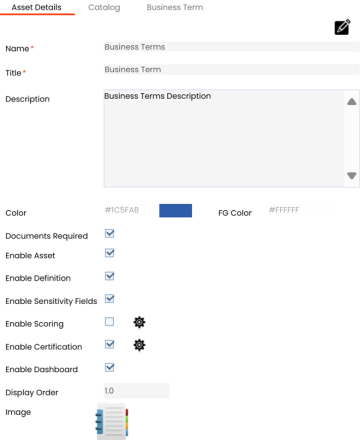
- Select the Enable Scoring check box.
- To configure scoring, click
 .
. - Enter or select appropriate values in the fields. Fields marked with a red asterisk are mandatory.
-
Definition or Description: 20%
-
Tags: 15%
-
Governance Responsibilities: 15%
-
SDI Classification: 15%
-
Other Associated Assets: 15%
-
At least one Business Term association: 20%
-
Stream: 100%
-
Daily: 80%
-
Weekly: 60%
-
Monthly: 40%
-
Yearly: 20%
-
Less than 6 months: 10%
-
6 months to 1 year: 25%
-
1 to 3 years: 50%
-
3 to 10 years: 75%
-
More than 10 years: 100%
-
Bronze: Indicates lowest value assets. For example, when the value is set to 30, the percentage score from 0 to 30 is configured as Bronze.
-
Silver: Indicates mid-value assets. For example, when the value is set to 70, the percentage score from 31 to 70 is configured as Silver.
-
Gold: Indicates highest value assets. For example, when the value is set to 100, the percentage score from 71 to 100 is configured as Gold.
-
Key: Displays score using the key classification. For example, Gold, Silver, and Bronze.
-
Value: Displays the numerical score
-
Both: Displays both key and score
- Click
 .
. - Click
 .
.
Scoring is enabled.
The Configure Scoring pane appears.
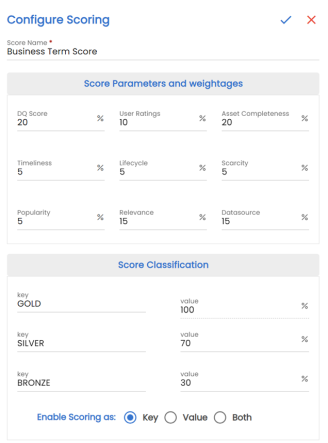
Refer to the following table for field descriptions.
|
Field Name |
Description |
|---|---|
|
Score Name |
Specifies the name of the score. For example, Business Term Score. |
|
DQ Score |
Specifies the percentage based on the asset's Data Quality (DQ) Score. It is automatically calculated if the associated tables or columns have been profiled and include a DQ score. This value represents the overall average DQ score of all linked tables and columns. |
|
User Ratings |
Specifies the percentage based on the overall average of user ratings for the asset. |
|
Asset Completeness |
Specifies the percentage based on the completeness of assets. It is automatically calculated based on the following components where each component contributes a fixed percentage to the overall score:
|
|
Timeliness |
Specifies the percentage based on how recent asset's data is. It is manually set based on selected value at the asset level. |
|
Lifecycle |
Specifies the percentage based on asset’s lifecycle stage. This value is manually set according to the selected stage at the asset level: |
|
Scarcity |
Specifies the percentage based on how unique an asset is within the data catalog. You can manually set the value from 0 to 100. |
|
Popularity |
Specifies the percentage based on the number of views the asset has received. A total of 300 views corresponds to a score of 100. The score is automatically calculated based on the asset's view count and its relative weightage. |
|
Relevance |
Specifies the percentage based on an asset's association with one or more business processes. A score of 100% is assigned if at least one business process is associated with the asset. |
|
Datasource |
Specifies the percentage based on an asset's associations with environments, tables, or columns of environments that have the Authorized Datasource option switched on in the Metadata Manager module. |
|
Keys |
Specifies the percentage ranges for each classification level |
|
Enable Scoring as |
Specifies the scoring mode |
The total weight must equal 100. To exclude a parameter from scoring, set its weight to 0%.
To discard your changes, click  .
.
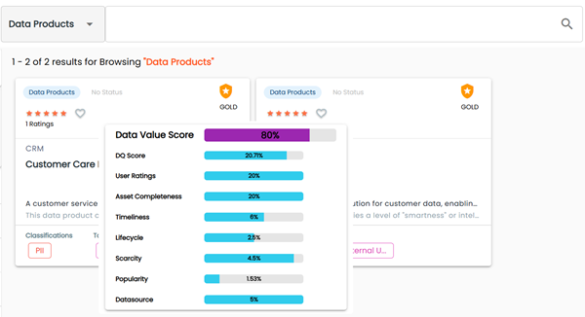
The data value score is available in the Business Glossary Manager, Data Marketplace, and Discover Assets modules.
For example, the asset displayed in the following image, of type Data Products, has a score of 80% and is rated Gold.
Additionally, on the <Asset_type> tab, you can include or exclude the Timeliness, Lifecycle, and Scarcity properties by switching the Published option to ON or OFF on the Configure form.
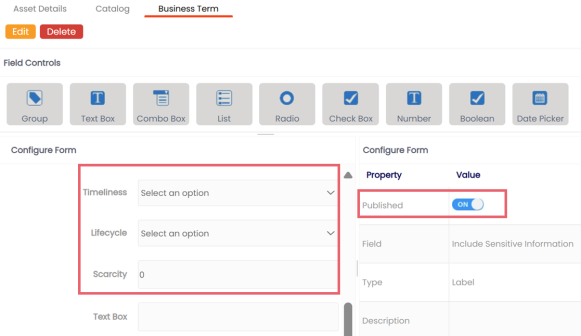
These properties must not be deleted. If they are removed, the Data Value score will not be displayed.